

Stripe Integration with SurveySparrow lets you collect payments or donations from respondents via credit/debit cards through your survey forms. From making the payments online to securely collecting the purchase amounts, and managing your transactions efficiently, the Integration has got you all covered.
Stripe Survey Integration: Use Cases
Seamless transactions with Askfield – Stripe Integration
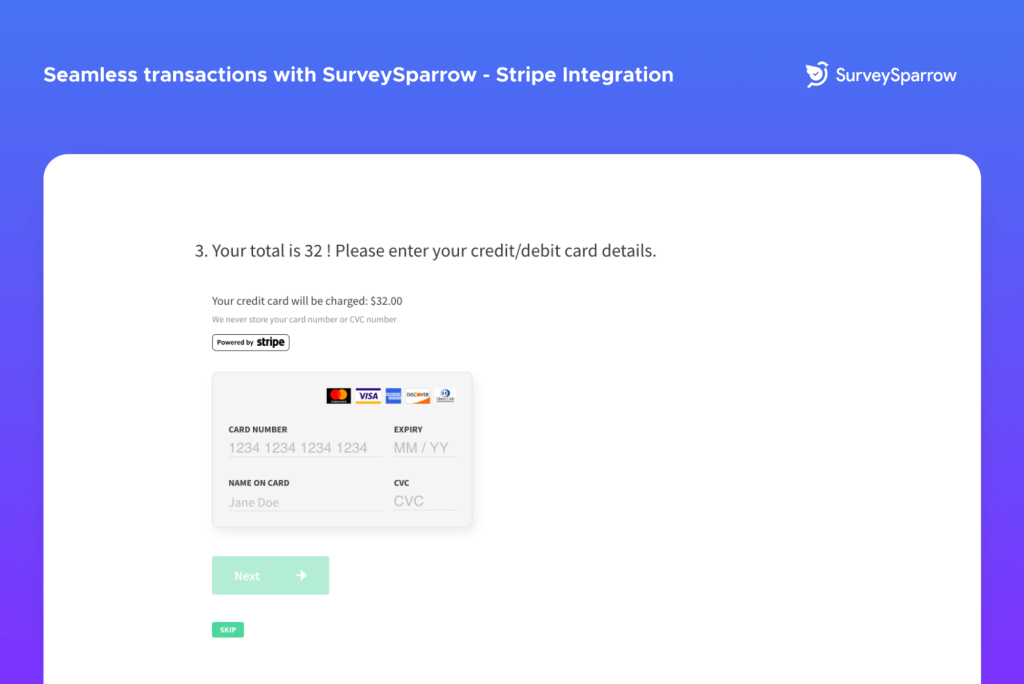 Add the Payment question type in your Classic/Chat survey to collect the payments securely. Authorize your Stripe account with SurveySparrow. All the data collected during the payment integration is encrypted, leaving no room for fraudulence.
Avail discount coupons with Askfield – Stripe Integration
 The respondents can avail of discounts by entering the coupon code at the time of making the payment. Once the coupon code is entered, they can see the discounted amount to be paid before the transaction. As soon as the payment gets done, you can access the detailed payment information in your Stripe account.
Enable Auto Receipts and invoices from your Stripe account
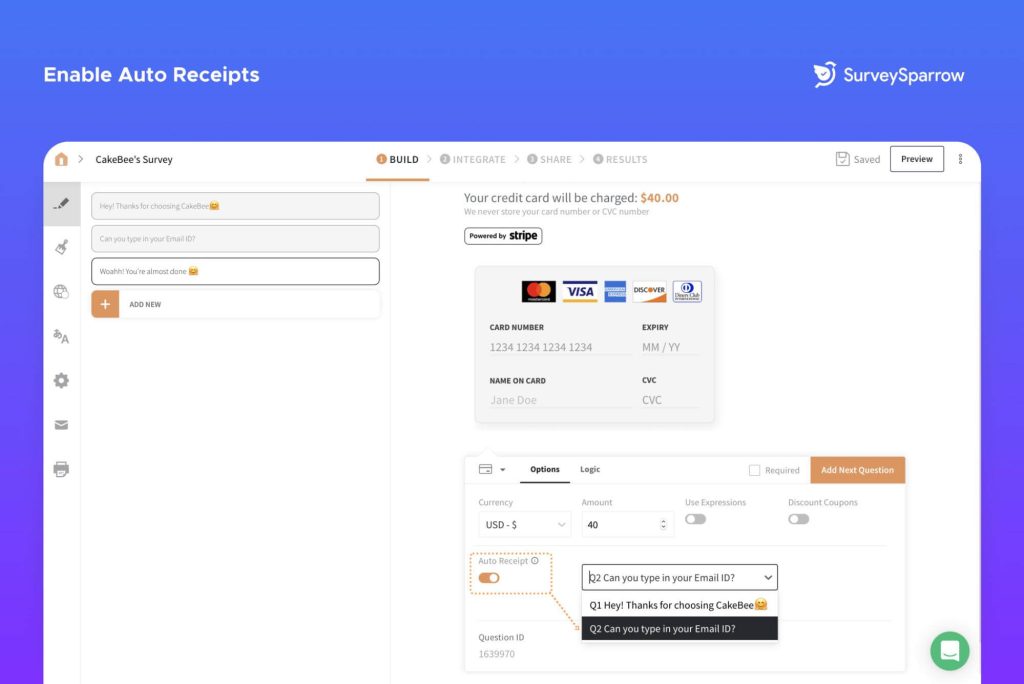
How to set up your Stripe Survey Integration
Askfield
A webhook in web development is a method of augmenting or altering the behavior of a web page, or web application, with custom callbacks.- Step 1: Sign in to a Developer Account and select New app. Choose an App name, Workspace and select Internal Integration if your app is used internally.
- Step 2: Configure the access token and OAuth, and select a permission level.
- Step 3: Choose a canvas kit and configure app capabilities(In this case, Place on Messenger Home screen). Enter the Webhook URL and Save.
- Step 4: Save and test the App.

Trigger – New Survey Submission
- Step 1: Choose App and Event – Intercom and New Closed Conversation
- Step 2: Choose Account – Sign in to your Intercom account
- Step 3: Customize Deal
- Step 4: Find Data – Choose sample data to send
- Step 5: Test the connection
Action – Add/ Update Subscriber in Mailchimp
- Step 1: Choose App and Event – Askfield and select a survey to send
- Step 2: Choose Account – Sign in to your Askfield Account
- Step 3: Customize Share Survey
- Step 4: Select a survey from the list
- Step 5: Select a share option (In this case, Email Share)
- Step 6: Select a recipient email ID
- Step 7: Pass a custom variable(Example: contactid)(Optional)
- Step 8: Test the connection