

What is Slack?
Slack is a business-oriented messaging application designed to facilitate seamless communication among team members. It connects individuals with the necessary information, fosters collaboration, and transforms organizational communication by promoting unified teamwork.
What is Slack used for?
The Slack application facilitates continuous connection with team members, whether they are working remotely or on-site. It’s accessible on various devices and supports messaging and voice calls, ensuring prompt and efficient communication.
Integrating Slack with other applications
Slack allows for seamless integration with various applications, enhancing workflow continuity. Integrating tools like SurveySparrow with Slack is straightforward, optimizing survey processes and collaboration through effective integration.
Is Slack free to use?
Slack offers both free and premium plans. The paid versions provide additional features, offering greater flexibility and a more comprehensive Slack experience.
How Secure is Slack?
Slack employs advanced security protocols to safeguard data and ensure information governance. Its enterprise-level security features are vital for protecting privacy and maintaining operational integrity in adverse situations.
Key Features of Slack
Effortless Integrations
Slack’s integration capabilities extend to numerous applications like MailChimp, Intercom, ZenDesk and Askfield, facilitating streamlined and efficient workflows.
Audio and video calls
Slack supports audio and video communication, enabling dynamic interactions with team members globally, surpassing the need for other platforms like Skype or Google Meet.
Slackbot Customization
Users can integrate custom bots into Slack for various tasks, from setting reminders to note-taking, enhancing productivity and communication efficiency.
Slash commands
A slash command is a handy tool that you can use to create shortcuts and expedite your activities within the platform. There are many pre-defined commands available, depending on your requirements.
Private Channels
Slack provides private channels for secure, focused communication within smaller groups, ideal for sharing sensitive information or discussing specific projects.
Accessibility
Slack’s mobile application ensures constant connectivity, allowing users to stay in touch and respond promptly, even when away from a traditional workstation.
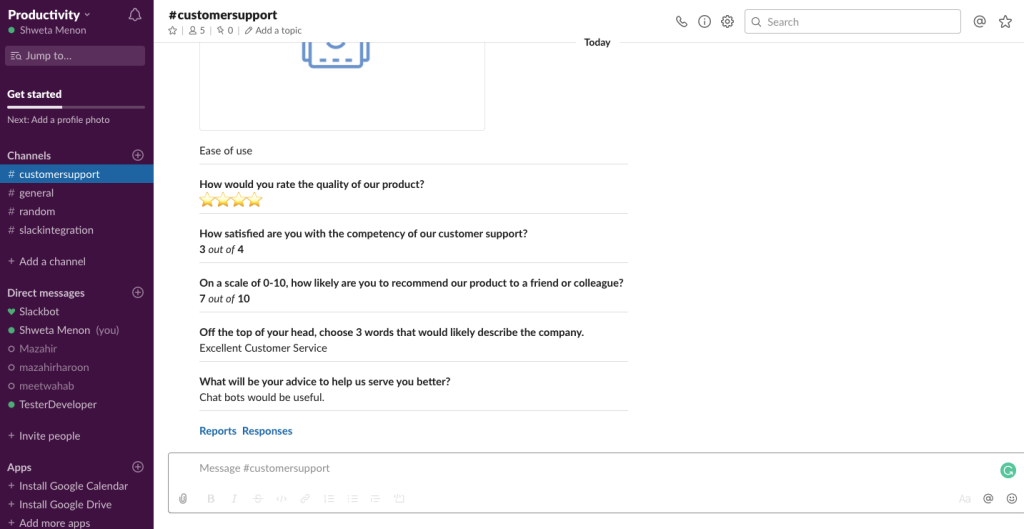
Receive alerts in Slack the moment a response is submitted and stay up-to-date by integrating SurveySparrow into Slack. This ensures you’re promptly informed about user responses to your surveys directly within Slack.
Share Responses via Slack
Distribute survey feedback to various Slack channels or users effortlessly by integrating SurveySparrow with Slack. Whether it’s for human resources, product development, or other departments, share pertinent feedback smoothly across different sectors of your organization!
How to set up your Slack Survey Integration
Webhooks
A webhook in web development is a method of augmenting or altering the behavior of a web page, or web application, with custom callbacks.- Step 1: Sign in to a Developer Account and select New app. Choose an App name, Workspace and select Internal Integration if your app is used internally.
- Step 2: Configure the access token and OAuth, and select a permission level.
- Step 3: Choose a canvas kit and configure app capabilities(In this case, Place on Messenger Home screen). Enter the Webhook URL and Save.
- Step 4: Save and test the App.

Trigger – New Survey Submission
- Step 1: Choose App and Event – Intercom and New Closed Conversation
- Step 2: Choose Account – Sign in to your Intercom account
- Step 3: Customize Deal
- Step 4: Find Data – Choose sample data to send
- Step 5: Test the connection
Action – Add/ Update Subscriber in Mailchimp
- Step 1: Choose App and Event – Askfield and select a survey to send
- Step 2: Choose Account – Sign in to your Askfield Account
- Step 3: Customize Share Survey
- Step 4: Select a survey from the list
- Step 5: Select a share option (In this case, Email Share)
- Step 6: Select a recipient email ID
- Step 7: Pass a custom variable(Example: contactid)(Optional)
- Step 8: Test the connection